
LLS WebAdmin
Manage the LAN License Server from any browser on the network — seats, clients, users, logs, hosted databases, and activation — at http://<server-ip>:9099/. Enabled by default; no install.
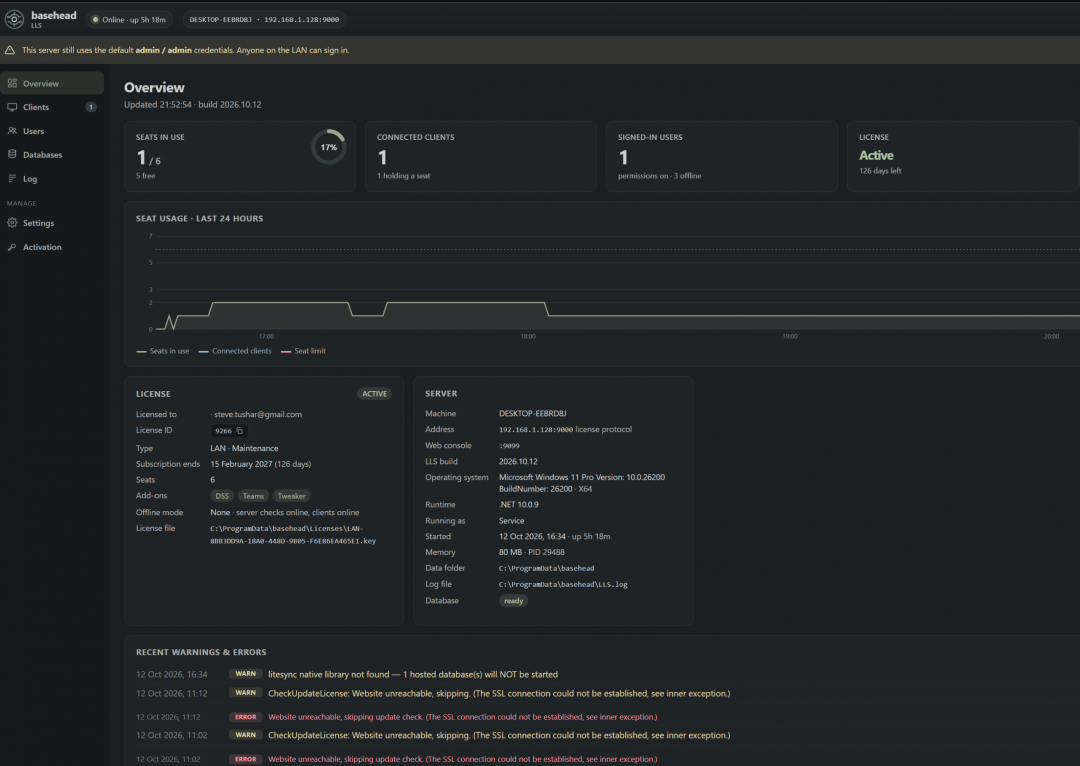
Getting in. Open http://<server-ip>:9099/ in a browser and sign in with the LLS admin account — it starts as admin / admin until you change it (a banner nags until you do). Port 9099 sits inside the 9000–9100 block you already open for the LLS and DSS; if you only opened 9000, open 9099 too. A no-login health endpoint for monitoring tools lives at /api/health.
The tabs
- Overview — seat gauge, connected clients, signed-in users, license status / days left, a 24-hour seat chart, and recent warnings & errors.
- Clients — a live table with each client’s machine name over
ip:port. Spot ghost seats and force-release a seat. - Users & Teams Teams add-on — one row per user per machine, Online (connected now) vs Offline. Sign out a session; the user, team, and shared-DB directory is read-only here (edit it in the app under Options → Teams).
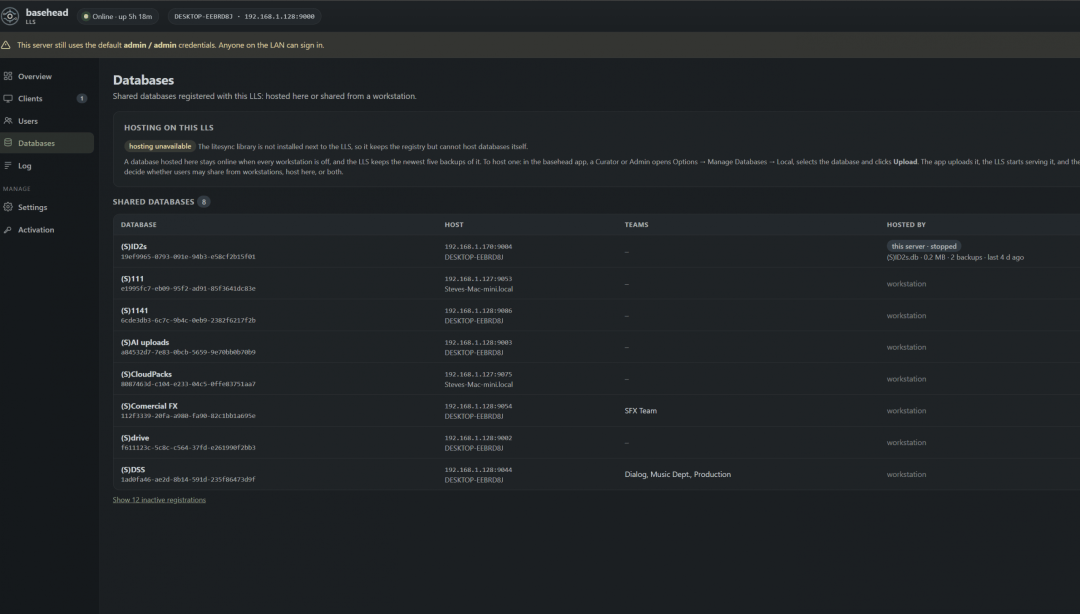
- Databases Teams add-on — the hosted-database table with Stop / Start / Back up now / Delete, and a nav badge showing the hosted count. See Hosting databases on the LLS below.
- Log — a live tail with level and text filters, pause / follow / copy, plus download of
LLS.logor a diagnostics zip. - Settings — permission system, password lock, offline overrides, admin credentials, WebAdmin port / bind / certificate, and a rescan of the license folder.
- Activation — copy the Device Serial Code and drag-and-drop a
.keyfile to activate.
Live sync. Settings changed in WebAdmin — permission system, lock password changes, offline overrides — push to every connected basehead within a second; the app’s Teams tab no longer needs a reconnect. Changes made in the app show in WebAdmin on its next refresh, a few seconds later.
Users & Teams Teams add-on
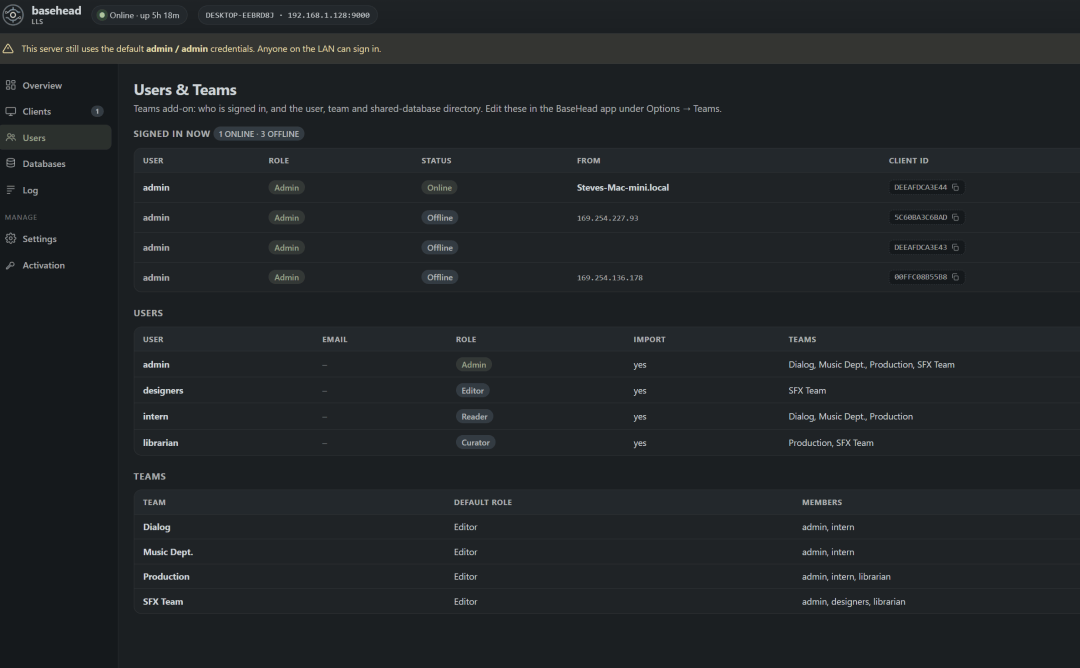
Signed in now lists one row per user per machine — Online means the app is connected right now, Offline means they signed in earlier and the machine isn’t connected. The counts on the Overview page show online only. You can sign a session out from here; everything else about users and teams is edited in the app.
Hosting databases on the LLS Teams add-on
The LLS can host shared databases itself, so they stay online even when every workstation is off. Requires the Teams add-on on a LAN license.
From the app
On the Local tab of Options → Manage Databases, a Curator or Admin selects a database and clicks Upload (next to Share). The app uploads it, the LLS starts serving it as (S)Name, then basehead offers to Pull it to this machine now (Yes = a normal pull, activated when done). On the Remote tab, hosted entries read “Hosted on LLS · backed up Nh ago” with Unhost (stop serving, file stays on the LLS) and Delete (stop, keep one backup, remove). Under Teams → Databases, a hosted DB shows Unhost / Delete (Admin) instead of Unregister.
From WebAdmin
The Databases page shows a hosting-status card, a live table (hosted DBs first), and per-database Stop / Start / Back up now / Delete. Inactive registrations hide behind a “Show N inactive” link.
Automatic backups. Under Settings → Teams & permissions → Hosted database backups, a snapshot runs daily at HH:00 server time, keeping the last N per database (defaults 03:00 and 7). Backups land in <data folder>\HostedDatabases\Backups; the first snapshot runs right after a DB is hosted. To restore, copy a backup over the hosted file while it’s stopped, then Start.
Deleting is end-of-life. Delete marks everyone’s pulled copy end-of-life — a red warning on each load, the Remote row reads “Local copy”, and the reconnect loop stops retrying it. Admin confirmations (app and WebAdmin) show how many users are connected right now; connected users get an immediate warning — red for a delete, orange for a stop.
Needs liblitesync next to the LLS — included in the Windows and macOS builds, and in the Linux .deb from this build on. Without it WebAdmin keeps the registry but shows hosting unavailable.
Activation

.key file to load it.The Activation tab bundles everything needed to activate or replace the LAN license on the server: copy the Device Serial Code, paste it into your My Licenses page to activate an empty LAN container, then drag the downloaded .key back onto the drop box — the server picks it up and the Overview page turns green. The full walkthrough lives in the LAN License Server article.
Locking it down
By default WebAdmin binds to 0.0.0.0 (reachable from the LAN). Tune it in LLS.settings, then restart the LLS:
Logins are throttled per IP and sessions are HttpOnly cookies. On Windows, if only port 9000 was opened during install, add a rule for 9099 too (the netsh command is in the PC README).