
Audio Engine & Routing
All Options tabs are accessible from View → Options Page.
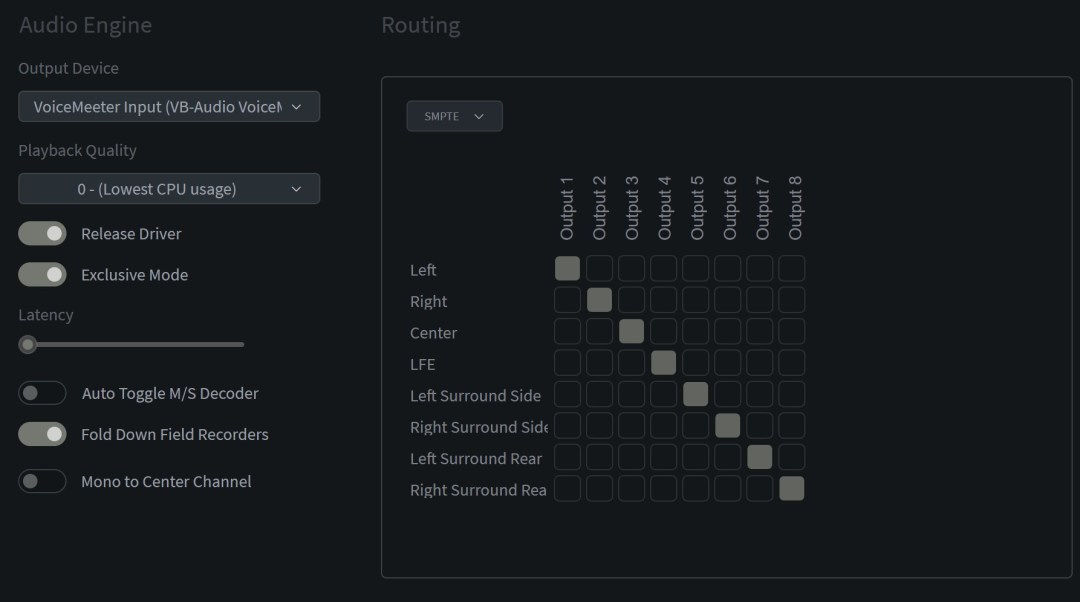
Audio Engine
Output Device
Pick the audio device basehead plays out of.
basehead Connect won’t appear in this list — it’s hardwired. Use the B.C. button on the lower middle transport to engage streaming to your DAW.
If you see the waveform draw but the playhead doesn’t move, the audio device is most likely seized by another program.
Playback Quality
Affects sample-rate conversion (0–3). For best performance, leave at 0. If you’re recording basehead‘s output, raise it. With modern computers, 3 is fine.
Release Driver
Releases the audio driver in the background when switching applications, so basehead can hand it off to another program.
Exclusive Mode Windows
Grabs exclusive control of your audio hardware.
Latency Slider
Raise it if you hear pops and clicks during playback.
Auto Toggle M/S Decoder Standard / Ultra
Auto-switches the M/S decoder ON when the tag M/S appears in the [microphone] field. Just add that tag to your M/S recordings.
Fold Down Field Recordings
Auto-detects multi-track field recordings and folds them down to stereo for monitoring. Toggle on/off via the Fold button on the Mixer Panel. Force this auto-detection by adding F/R to the [microphone] field.
Mono to Center Channel
If more than 4 speakers are detected, all mono and solo’d sources play out the center channel instead of front L/R.
Routing

For multi-channel setups, choose between Film, SMPTE, and DTS channel orders, or set your own free routing to map any source to any speaker.
With basehead Connect on, the Output Device greys out and the grid shows Connect’s 16 outputs. Connect keeps its own saved routing, and Free Routing works even if your device is stereo. Click the banner atop the Routing section to turn Connect off.